Watch UZZU on Smart TVs When UZZU Max Is Not Available
Updated Nov 12, 2026
Watch UZZU on Smart TVs When UZZU Max Is Not Available
Through compatible IPTV apps
If the UZZU Max app is not available in your Smart TV's App Store or Play Store, or your TV is not compatible with UZZU Max, you can use a compatible IPTV app to access UZZU.
This method can be used on LG, Samsung, TCL, Sony, Panasonic, Toshiba, Element, and other compatible Smart TVs.
Recommended IPTV Apps
We recommend using one of the following IPTV apps:
1. Smart IPTV / SIPTV
2. SmartOne IPTV
3. Net IPTV
4. IPTV Extreme
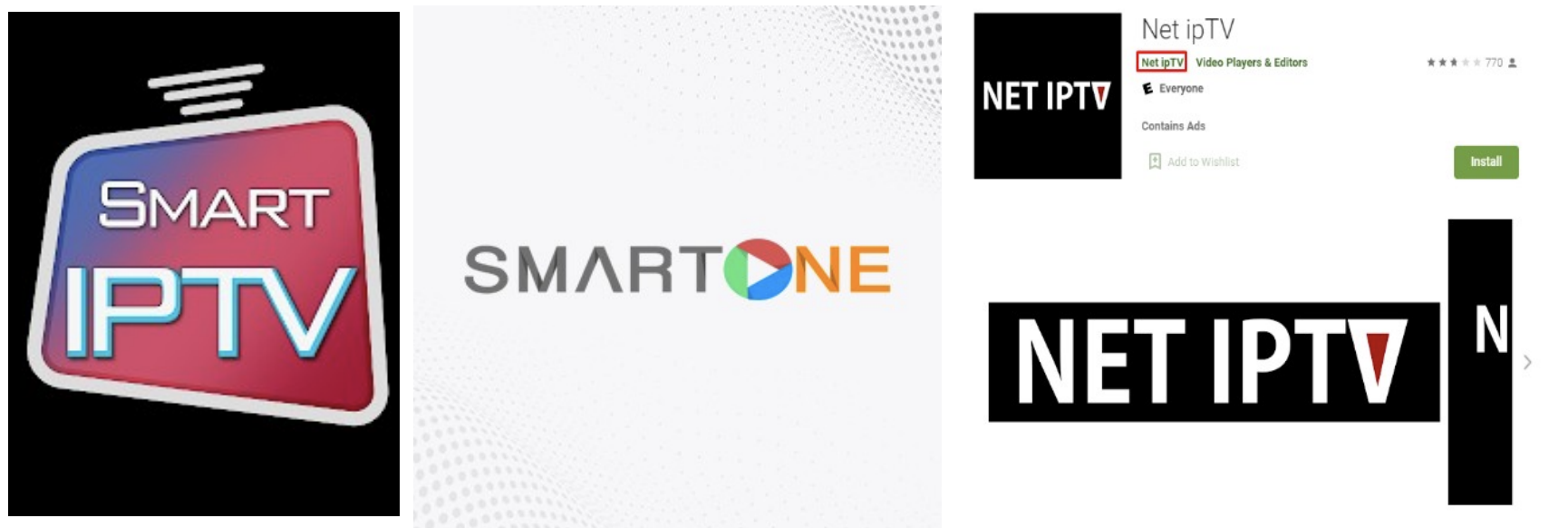
Step 1 – Install an IPTV App
Open your TV's App Store or Play Store and search for one of the recommended IPTV apps.
Select the app and install it on your TV
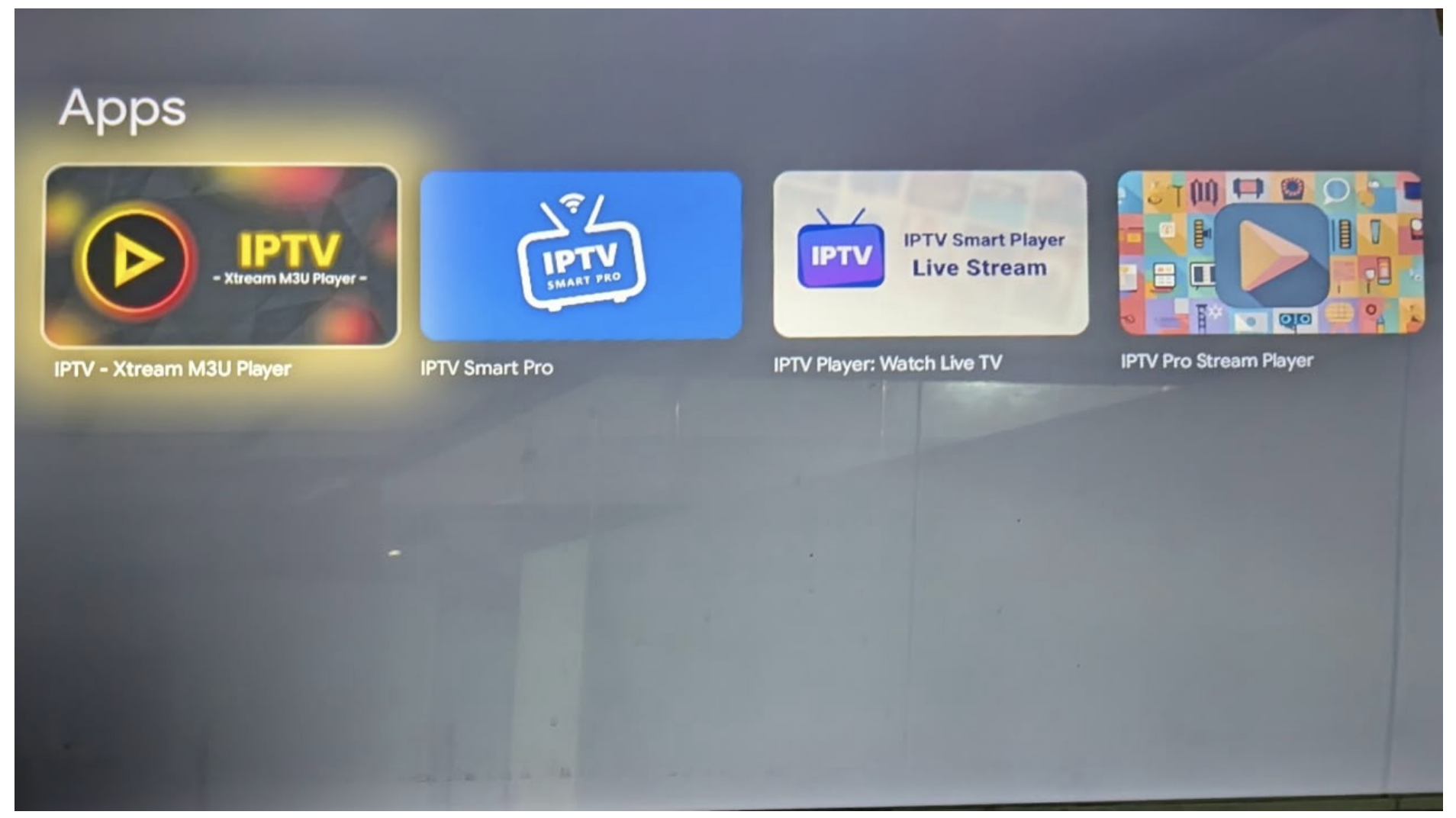
Once the installation is complete, open the IPTV app.
Step 2 – Find Your MAC Address or Device ID
When you open the IPTV app, look for the MAC Address, Device ID, or similar identifier displayed on the app's home screen.
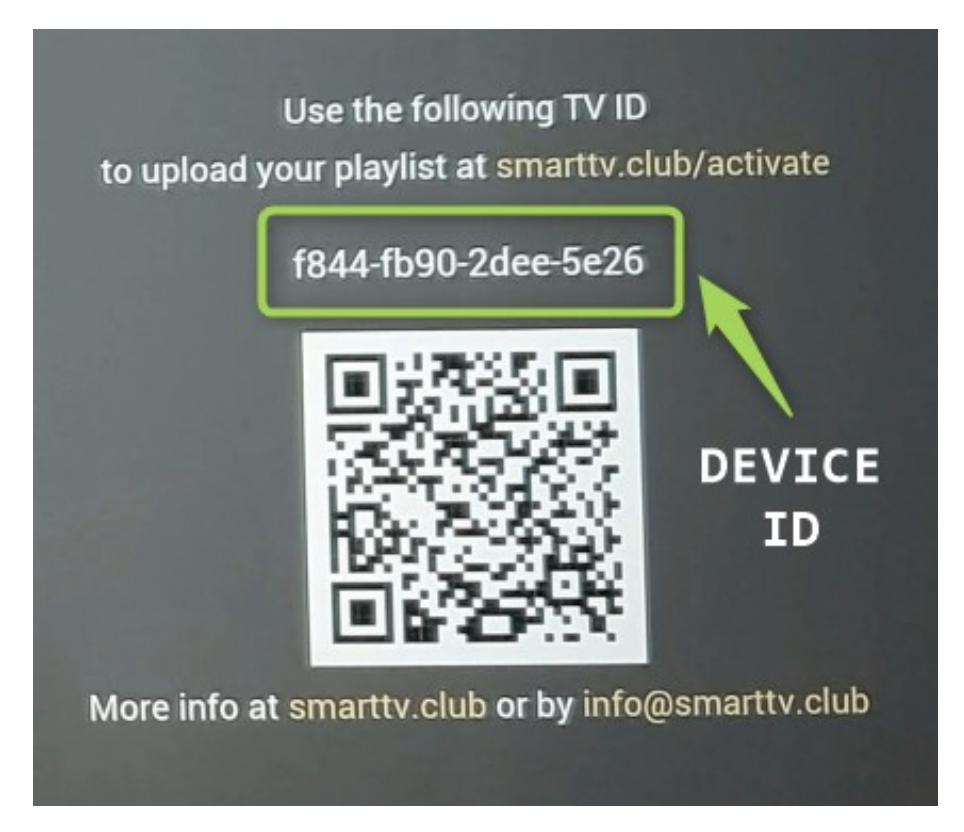
You will need this information to connect your UZZU account to the IPTV app.
Step 3 – Activate the IPTV App
You have two options to activate the IPTV app.
Option 1 – Contact UZZU Support
Take a clear screenshot or photo of the screen showing your MAC Address/Device ID.
Send it to:
Please also mention the name of the IPTV app you are using, such as Smart IPTV, SmartOne IPTV, Net IPTV, or IPTV Extreme.
Our support team can assist with configuring the app.
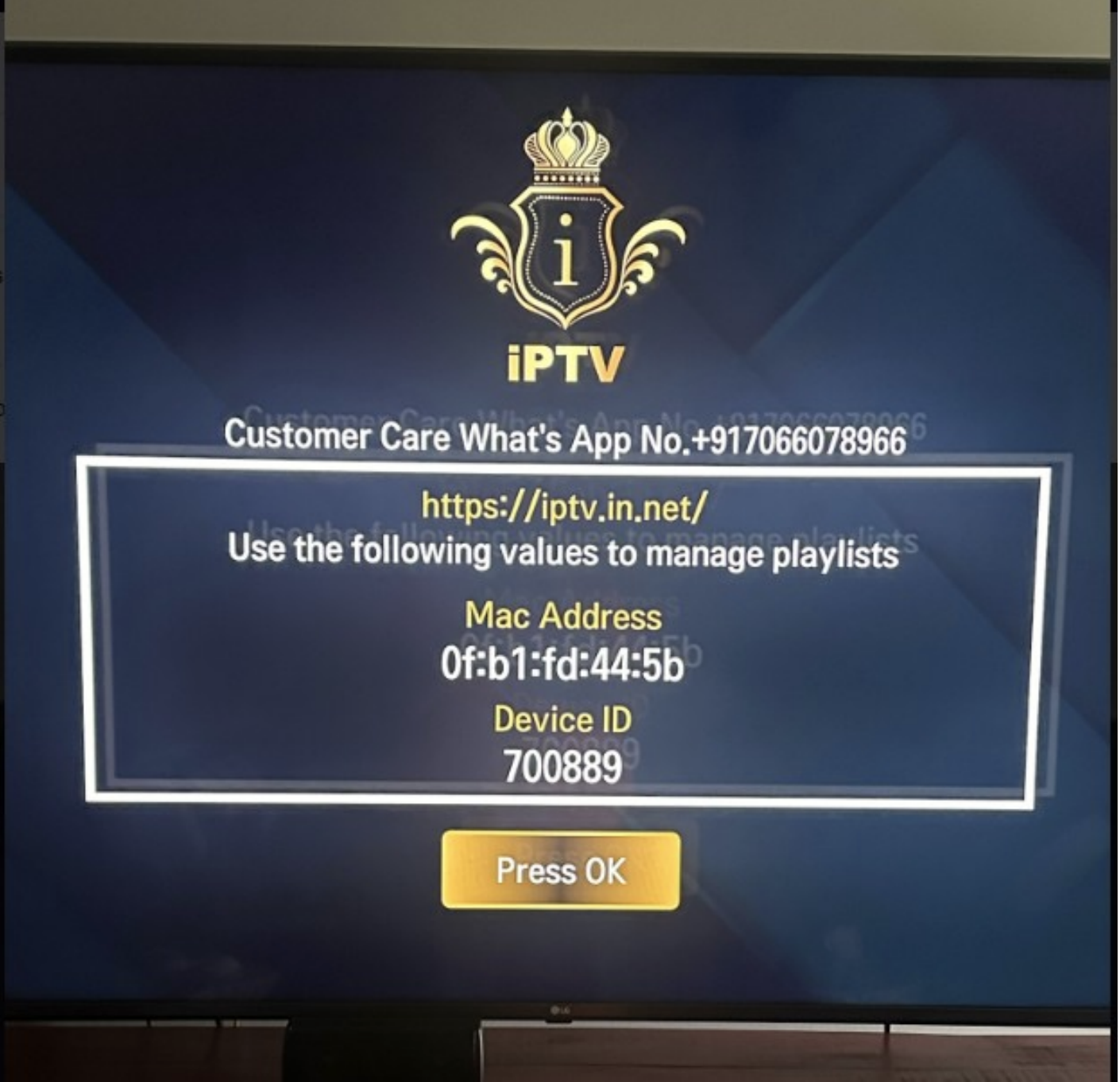
Option 2 – Activate the App Yourself
If the IPTV app displays an activation website on its home screen, open that website using a phone, computer, or another device.
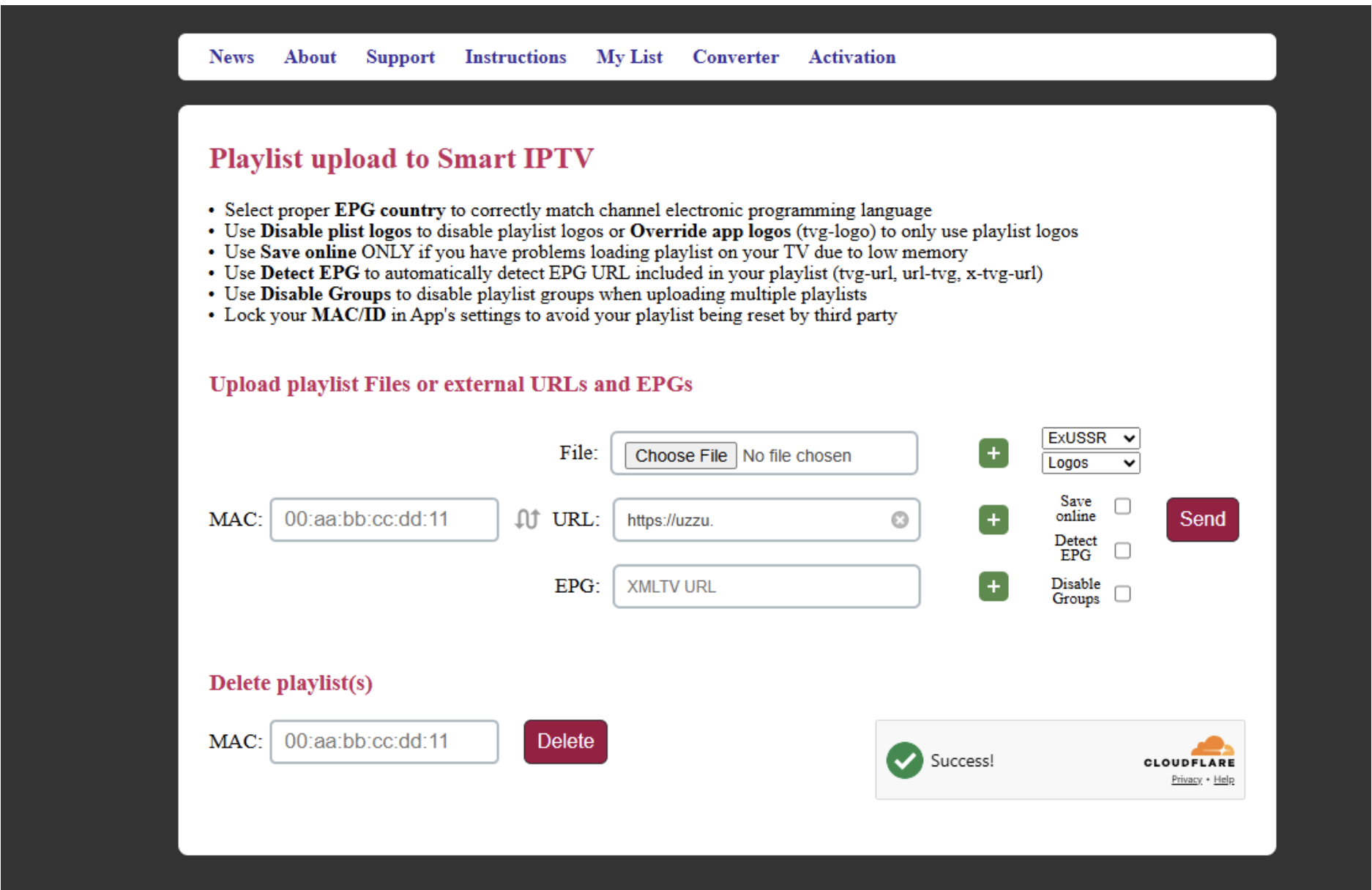
On the activation website, enter the MAC Address/Device ID displayed in your IPTV app.
For the playlist URL, enter:
https://uzzu.tv/app/associated_email_address
Replace associated_email_address with the email address associated with your UZZU account.
For example, if your UZZU account email is example@email.com, enter:
https://uzzu.tv/app/example@email.com
After entering the required information, select Save.
Step 4 – Load the UZZU Playlist
Return to your IPTV app on the TV.
Load or refresh the playlist.
Once the playlist has loaded successfully, UZZU content should appear in the IPTV app.
If None of the Recommended Apps Is Available
If you cannot find Smart IPTV, SmartOne IPTV, Net IPTV, or IPTV Extreme in your TV's App Store or Play Store, you can install any compatible IPTV player that supports M3U/M3U8 playlist URLs.
Search your TV's app store for an IPTV player that supports M3U or M3U8 playlists.
After installing a compatible IPTV player:
1. Open the IPTV app.
2. Look for an option such as Add Playlist, Add M3U Playlist, Load M3U URL, or a similar option.
3. Enter the following UZZU playlist URL:
https://uzzu.tv/app/associated_email_address
4. Replace associated_email_address with the email address associated with your UZZU account.
5. Save the playlist.
6. Load or refresh the playlist in the IPTV app.
Please note: The names and locations of the options may vary depending on the IPTV app you choose.
Important Note The IPTV apps mentioned in this guide are third-party applications and are not operated by UZZU. Their availability, features, activation process, and interface may vary depending on the TV model and app version.
Did this solve it?
Talk to a human